NeverDrop Visio for Mac
Record visio calls from your Mac and turn them into live NeverDrop transcripts. The app captures microphone and system audio, keeps working while finalization runs in the background, and fits into the NeverDrop workflow your team already uses.
Native macOS app · Chrome extension also available
Requires macOS 14.2+ with Microphone and Screen Recording permissions.

Built for the calls your team already takes
 Zoom
Zoom  Google Meet
  Microsoft Teams
  FaceTime
  Discord
  Slack
Slack  Phone Calls
 From Call to Transcript
Sign in and get ready
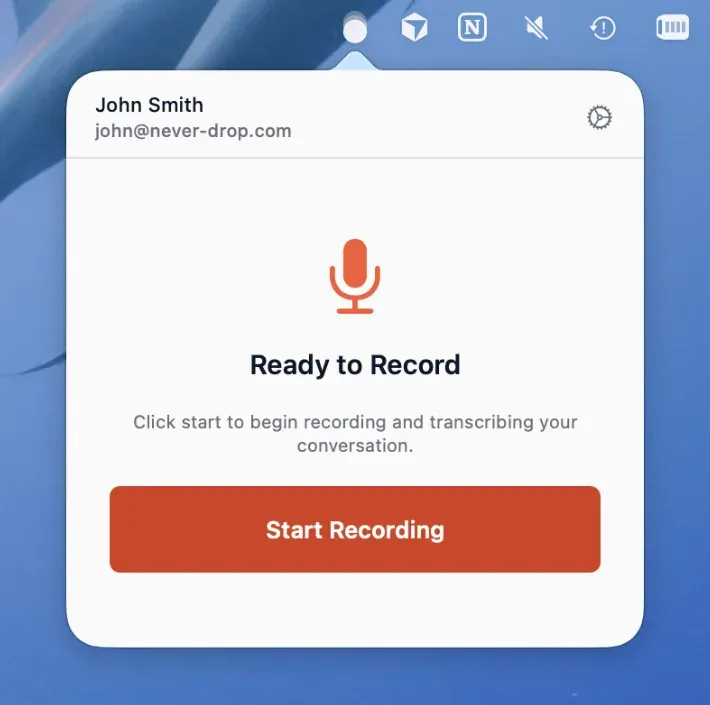
Install the Mac app, sign in with Apple, and grant the microphone and screen recording permissions macOS requires for call capture.
Record from the menu bar
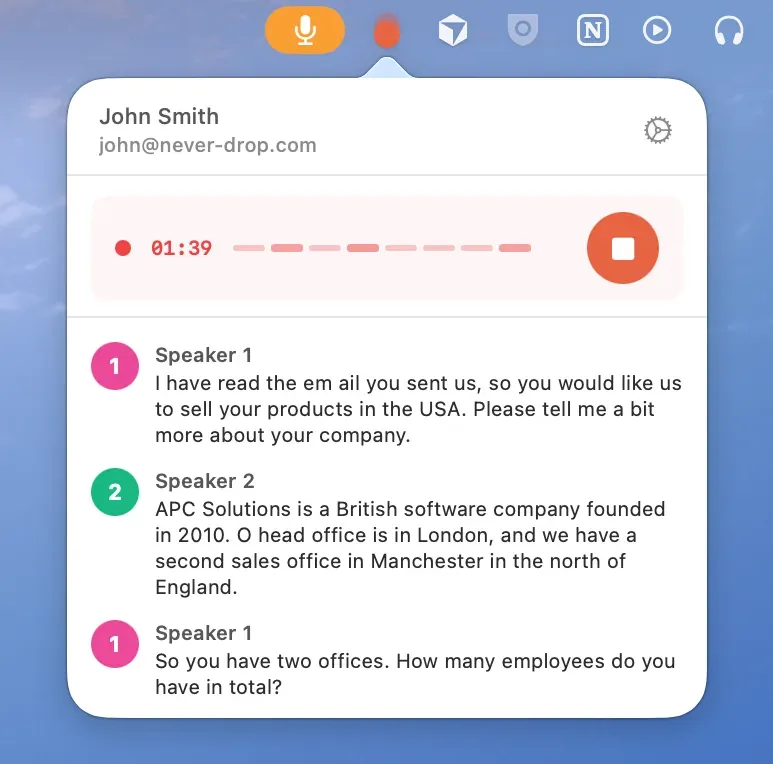
Start recording when the visio begins. NeverDrop captures microphone and system audio, switches audio devices automatically during recording, and streams the transcript live.
Let NeverDrop finalize
Stop recording and keep working. Audio chunks upload reliably and the transcript continues finalizing in the background.
Download NeverDrop Transcribe for macOS
What the Mac App Does
A branded NeverDrop app for call capture, not a separate transcription utility.
No Meeting Bot
Record from your Mac without adding a visible bot participant to Zoom, Meet, Teams, FaceTime, Slack, Discord, or phone calls.
Live Transcript
See the conversation appear while the call is happening, with speaker diarization so the transcript is easier to review.
Mac Menu Bar Workflow
Control recording from the menu bar and keep the app out of the way during active calls.
Reliable Finalization
Chunked audio upload and background finalization let you stop recording and move on while NeverDrop finishes processing.
NeverDrop Account
Sign in with Apple and keep call capture tied to the branded NeverDrop product experience.
Also on Chrome
Prefer to work in the browser? The NeverDrop Chrome extension captures Google Meet, Teams, and Zoom Web calls — switch with the toggle above.
Frequently Asked Questions About NeverDrop Transcribe
Both. This page covers the native macOS app and the Chrome extension — use the toggle at the top to switch. The Mac app captures any call on your machine; the Chrome extension captures Google Meet, Microsoft Teams, and Zoom Web.
macOS requires Microphone and Screen Recording permissions so NeverDrop can capture microphone and system audio during a call.
Yes. The Mac app uses Sign in with Apple and is part of the NeverDrop product experience.
You are responsible for informing participants and getting consent where required by local law before recording or transcribing a call.
The app is a universal build for Mac, available on the App Store. It requires macOS 14.2 or later.
Download NeverDrop Transcribe for Mac
Install the macOS app, sign in with Apple, grant the required permissions, and start capturing visio-call transcripts from your menu bar.
NeverDrop Visio for Chrome
Transcribe your browser meetings without leaving the tab. The NeverDrop Chrome extension captures Google Meet, Microsoft Teams, and Zoom Web calls, streams the transcript into a side drawer, and syncs everything to the NeverDrop workspace your team already uses.
Live on the Chrome Web Store · Native macOS app also available
Works in Chrome 116+ on Google Meet, Microsoft Teams, and Zoom Web.
Built for the meetings you take in the browser
Google Meet Microsoft Teams Zoom Web From Tab to Transcript
Add the extension and sign in
Install NeverDrop from the Chrome Web Store and sign in with email or Google. Your session survives browser restarts, so you only do this once.
Record from the meeting tab
Join a Google Meet, Teams, or Zoom Web call and start recording. NeverDrop captures both tab and microphone audio and streams the transcript live into a side drawer.
Let NeverDrop finalize
Stop recording and close the tab. Each recording becomes a NeverDrop interaction with participants matched to your contacts, ready for follow-up.
Add NeverDrop Transcribe to Chrome
What the Chrome Extension Does
Browser-native call capture that lives inside your meeting tab — no bot, no download to manage.
No Meeting Bot
Capture the call directly from your tab without adding a visible bot participant to Google Meet, Teams, or Zoom Web.
Live Transcript Drawer
The transcript streams into a collapsible side panel on the meeting page, with speaker diarization to make review easy.
Contact Linking
Meeting participants are fuzzy-matched to your existing NeverDrop contacts, so each recording is tied to the right people.
Transparent by Default
NeverDrop auto-posts a disclaimer message in the meeting chat so participants know the call is being transcribed.
Same NeverDrop Account
Recordings, credits, and contacts are shared with the mobile and Mac apps — same workspace, same dashboard.
Also on Mac
Need FaceTime, Slack, Discord, or phone calls? The native macOS app captures any call on your machine — switch with the toggle above.
Frequently Asked Questions About NeverDrop for Chrome
Google Meet, Microsoft Teams, and Zoom Web. For FaceTime, Slack, Discord, or phone calls, use the native macOS app — switch with the toggle at the top of the page.
Chrome requires tab-capture and microphone access so NeverDrop can record both sides of the call. Audio is streamed for transcription and is not stored locally.
Yes. Sign in with email or Google. Recordings, credits, and contacts are shared with the rest of the NeverDrop product.
The extension is built for Chrome (version 116 or later). On other browsers, take your call in Chrome or use the native macOS app.
You are responsible for informing participants and getting consent where required by local law before recording or transcribing a call. The extension posts a disclaimer in the meeting chat to help.
Add NeverDrop Transcribe to Chrome
Install the extension from the Chrome Web Store, sign in, and start capturing Google Meet, Teams, and Zoom Web transcripts from inside the meeting tab.